Mobile 6
Maintenance Connection Canada
What you see
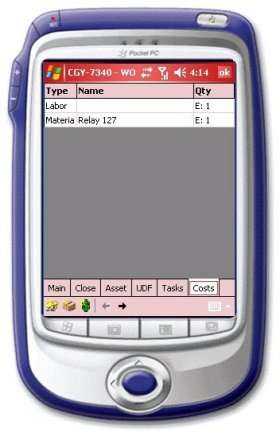
This screen shows all the cost items for this W/O as defined by the estimates assigned to the W/O. By clicking on the required item, a screen appears where the actual usage is entered. As well, you can add new labor, materials or other expenses to this WO in the field. This information is fed back to the main system on the next “sync”.
Navigation
<p style='color:black;font-weight:normal'><font face="Arial"><img border="0" src="/files/littlebutton.gif" align="bottom" width="17" height="17">Tap or hover over and click the Labor record to go the Labor cost entry screen<br>
<img border="0" src="/files/littlebutton.gif" align="bottom" width="17" height="17"> Tap or hover over and click the Material record to go to
the Material cost screen<br>
<img border="0" src="/files/littlebutton.gif" align="bottom" width="17" height="17">Tap or hover over and click Labor button <img border="0" src="/files/laorbtn.jpg" width="18" height="20"> to go to the new Labor cost screen<br>
<img border="0" src="/files/littlebutton.gif" align="bottom" width="17" height="17">Tap or hover over and click the Other button<img border="0" src="/files/otherbtn.jpg" width="15" height="21"> to go to the New Other cost screen<br>
<img border="0" src="/files/littlebutton.gif" align="bottom" width="17" height="17">Tap or hover over and click the Close button to go to Close screen for this W/O<br>
<img border="0" src="/files/littlebutton.gif" align="bottom" width="17" height="17">Tap or hover over and click the Main button to go back to
the W/O detail screen</font></p>