Mobile 3
Maintenance Connection Canada
What you see
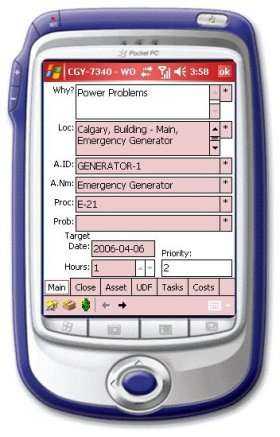
This is the main detail screen for the selected W/O. On this screen we see the reason for work order, location, asset ID and name, procedure code, problem code, the target date and time to complete this job and finally, the priority for this W/O .
This is also the jump point to all the other information and data entry screens for this W/O.
<p style='color:black;font-weight:normal'><font face='Arial'><img border="0" src="/files/littlebutton.gif" align="bottom" width="17" height="17">Tap or hover over and click the Task button to view and mark complete all the
required tasks to complete this job<br>
<img border="0" src="/files/littlebutton.gif" align="bottom" width="17" height="17">Tap or hover over and click the OK button<img border="0" src="/files/okbtn.jpg" width="21" height="19">to go back to the complete list of W/Os</font></p>